Get started with Case Flow
Navigation
Navigating the complexities of an immigration law firm requires efficient management of contacts, deals, and cases. To ensure your team operates effectively, a streamlined case management process is vital.
Case Flow is here to simplify your workflow. Our system consolidates all elements of your case management cycle and client data into one central hub. Fully customizable, it adapts seamlessly to your firm’s evolving needs. Ready to begin? Let’s dive in!
Managing your contacts and accounts.
Case Flow provides a specialized contacts board, functioning not just as a repository of client information, but also as a comprehensive view of deals, cases, and communications linked to each contact, creating a unique profile and history for every individual. .
Keep reading to learn about the most effective ways to manage your contacts using Case Flow in your practice. Let’s dive in!
Adding contacts and accounts
There are a few of our favorite ways to add or import contacts:
- They can be added manually, one item at a time.
- Via the form – You can use the form to not only capture contacts internally, but you can also share the form link with your clients, or embed it on your website.
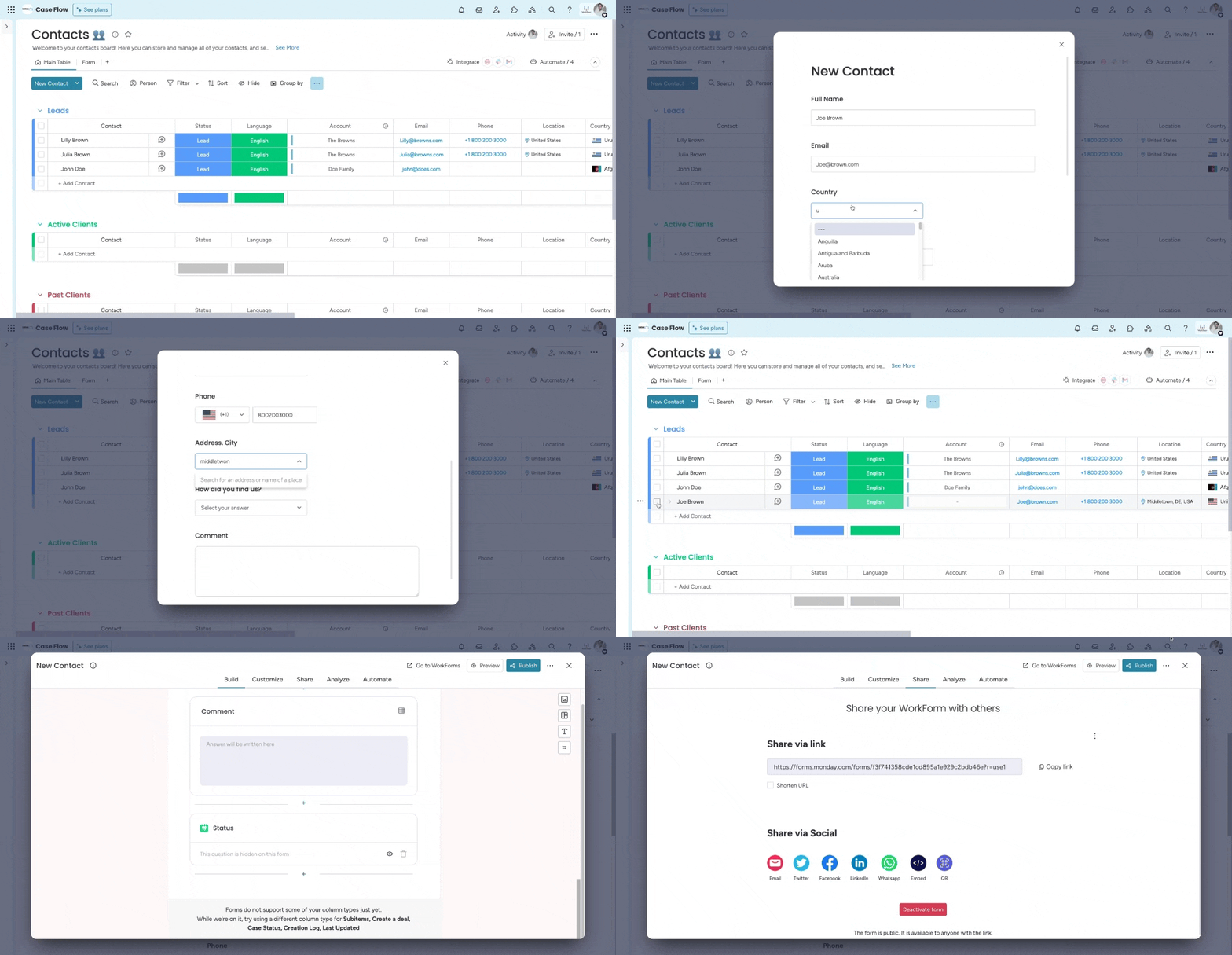
Just add your logo and your ready to go! If you want you can customize the form with additional styling and questions to suit your needs. Here is some additional resource on how to use monday WorkForms.
- Contacts can be added automatically through integrations with Facebook, Pipedrive, Hubspot, or other tools.
- They can be imported in bulk from tools like Excel or Google Sheets.
Accounts help you group your contacts together. An account could be a family with multiple family members or an organization with multiple employees.
Once a new contact is created, you can link it to its relevant account on the Accounts board thanks to the Connect Boards Column: 
You can select the account associated with the new contact by clicking on the space in the Account column next to your contact’s name. This will open up a menu that you can browse to find the correct account.
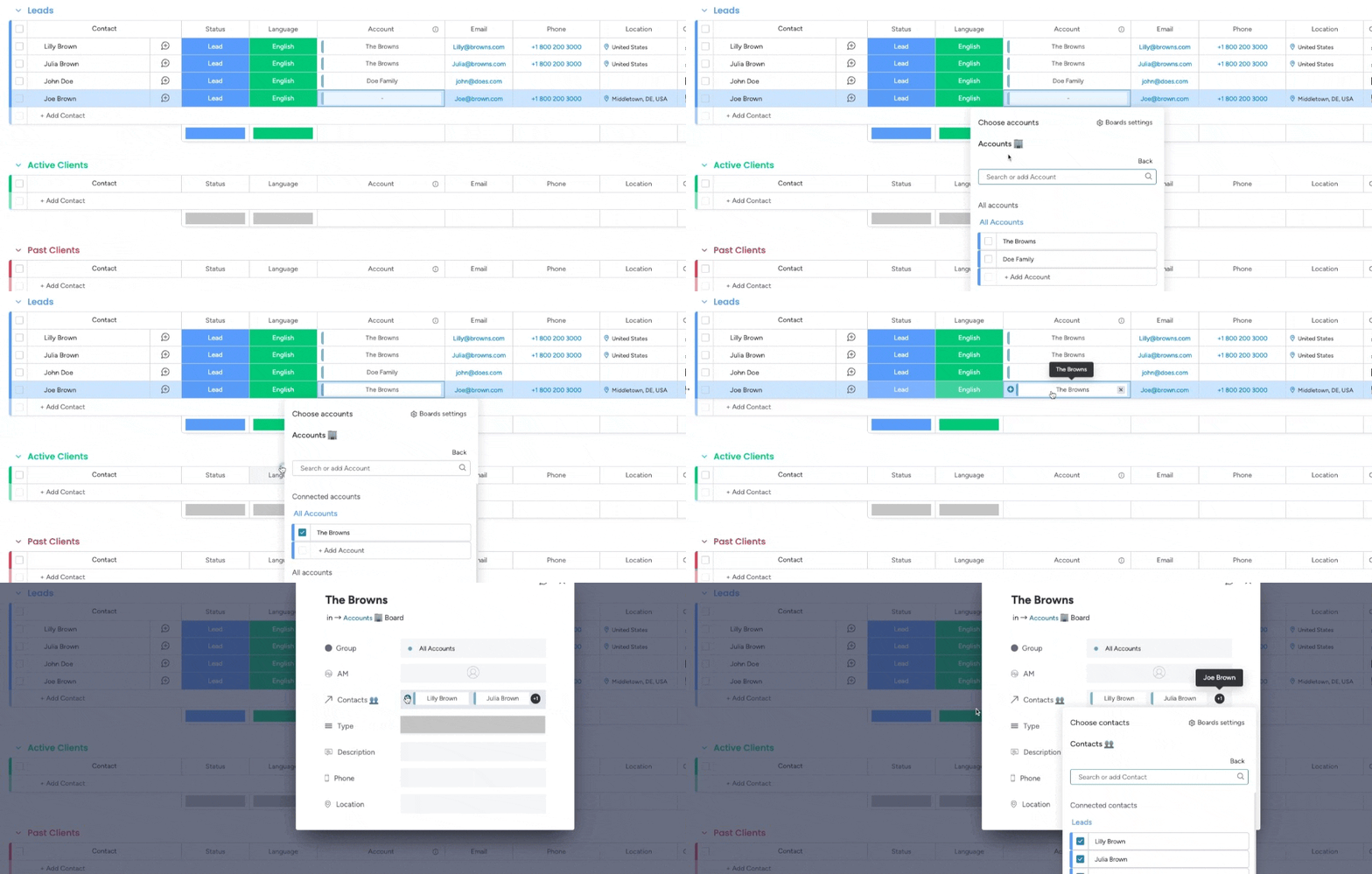
From the Accounts board, you will be able to see how many contacts are associated with each company.
Send and receive emails
To communicate better with your contacts, use the Emails & Activities app. With this feature, your team can manage hundreds of client or customer relationships within Case Flow. Send and receive emails, capture meeting notes, events, and more. Then view it all in one timeline.
Keeping your communication centralized means that your team will spend less time tracking down the details for every interaction.
Track your contacts’ activities
Since client relationships are more than just emails, the Emails & Activities app gives you the power to keep track of CRM activities too. From meetings to calls and more, log each interaction to see a full timeline of events in one concise view.
Each activity created will automatically be added to the Activities board. With all activities on one board, you can keep track of what’s coming up and create reports.
 Tip: You can even take it a step further by integrating this board with your Google or Outlook calendar. When integrated, every time a meeting is created, it will also automatically be added to your Google or Outlook calendar!
Overview of your contacts’ data
At Case Flow, we love making your life easier. That’s why we created The Item Card. If you click on any of your contacts, you will see everything you need to know in one easy-to-navigate view! 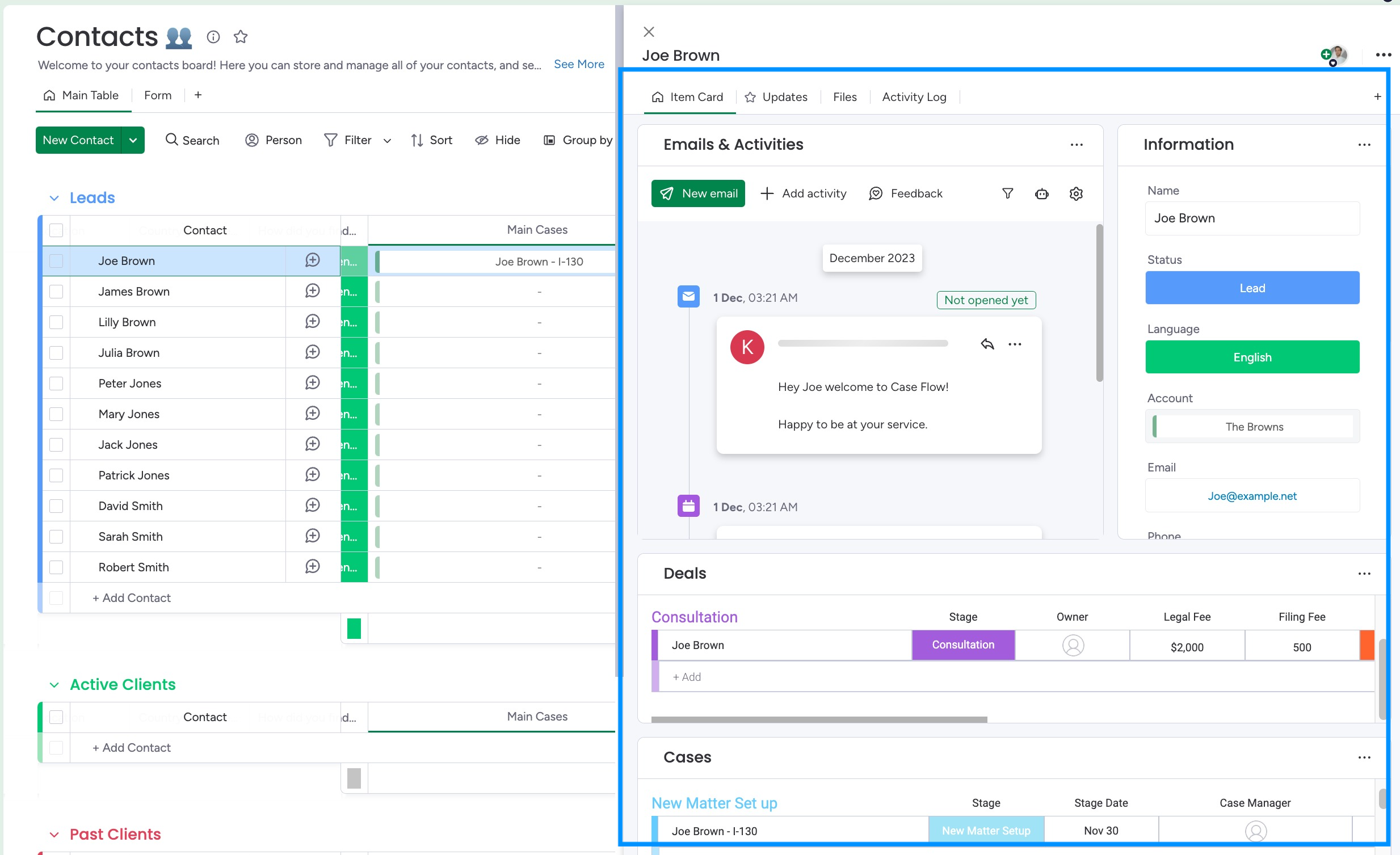
On the Item Card, we’ve combined various widgets allowing you to see all aspects of your customer’s information in one place:
- The Information Widget displays every column on your board in an easy-to-digest card.
- With the Emails & Activities Widget, you can manage all of your communication, meetings, and notes.
- The Connected Boards Widget allows you to see all related deals and cases for each contact.
Managing your information has never been easier! For more information on setting up The Item Card, check out The Item Card article.
Managing deals
The deals board, central to your sales operations, is enhanced with our custom-built elements, the Service List Board View and Services Item View. These features allow you to add services to your deals, automatically calculating legal and filing fees, and effortlessly create cases when a deal’s status updates to “Signed Up.” Here, you can track deal progression from consultation to contract, collaborate with your team through updates, and manage email communications.
Creating Deals
Looking to set up a new deal? Just like adding a contact, there are several methods to create a deal.
- You can manually insert a deal into the deals board and then link it to an existing contact or new contact directly from the connected board column.
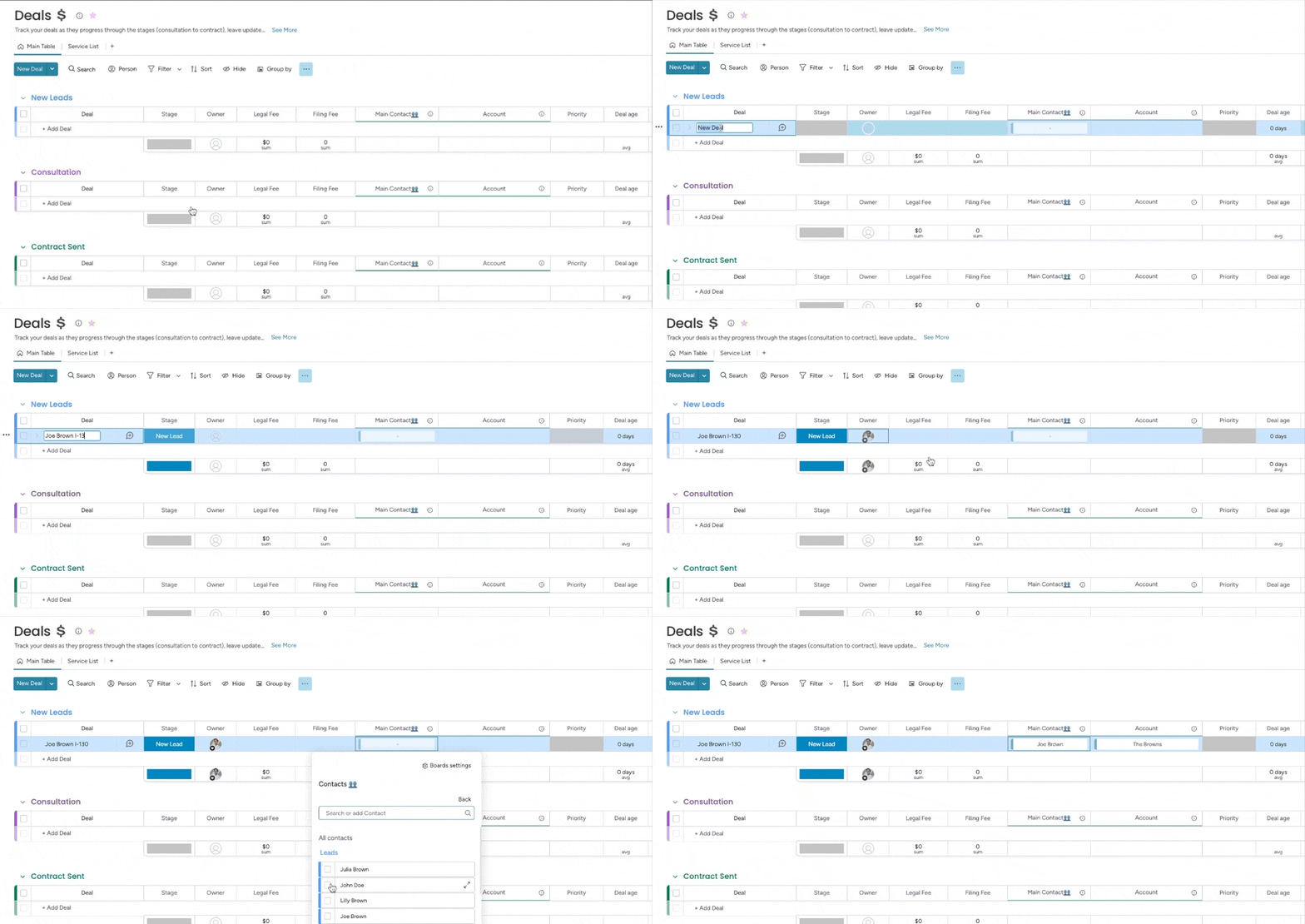
- Click the “Create a Deal” option in the contacts board to instantly generate a deal linked to your contact. You have the flexibility to populate the deal details either directly on the deals board or by selecting the newly established deal in the connected board, which opens the card view for easy editing.
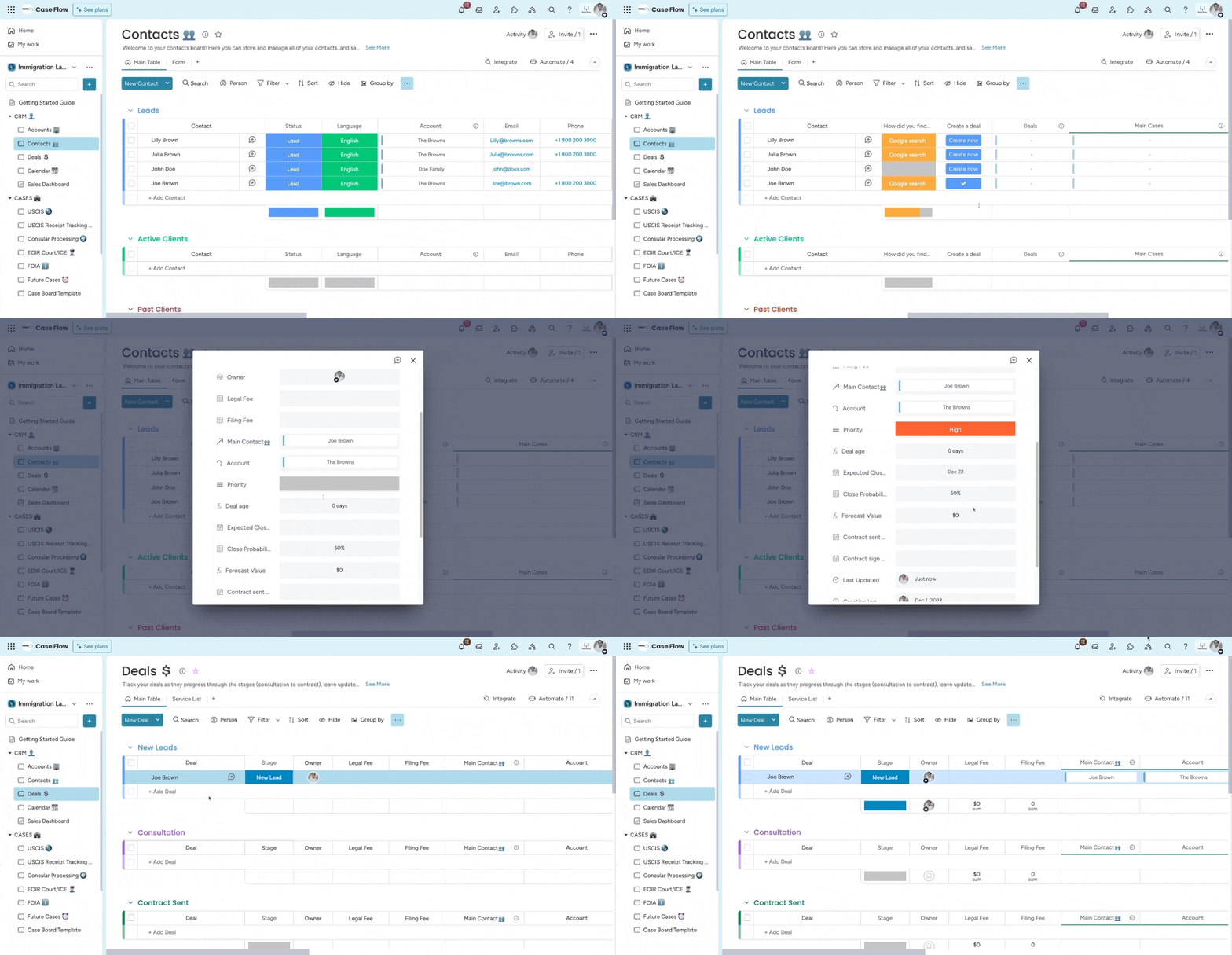
Here is more information about the Connect Boards Columns, which is used to connect Contacts to Deals.
Service List
The deals board in Case Flow is enhanced with two custom features developed by our team to streamline your workflow: the Service List Board View and the Services Item View.
Lets explain each one in depth.
Service List Board View:
Access this feature as a board view in your deals board. See the below screenshot for the location:
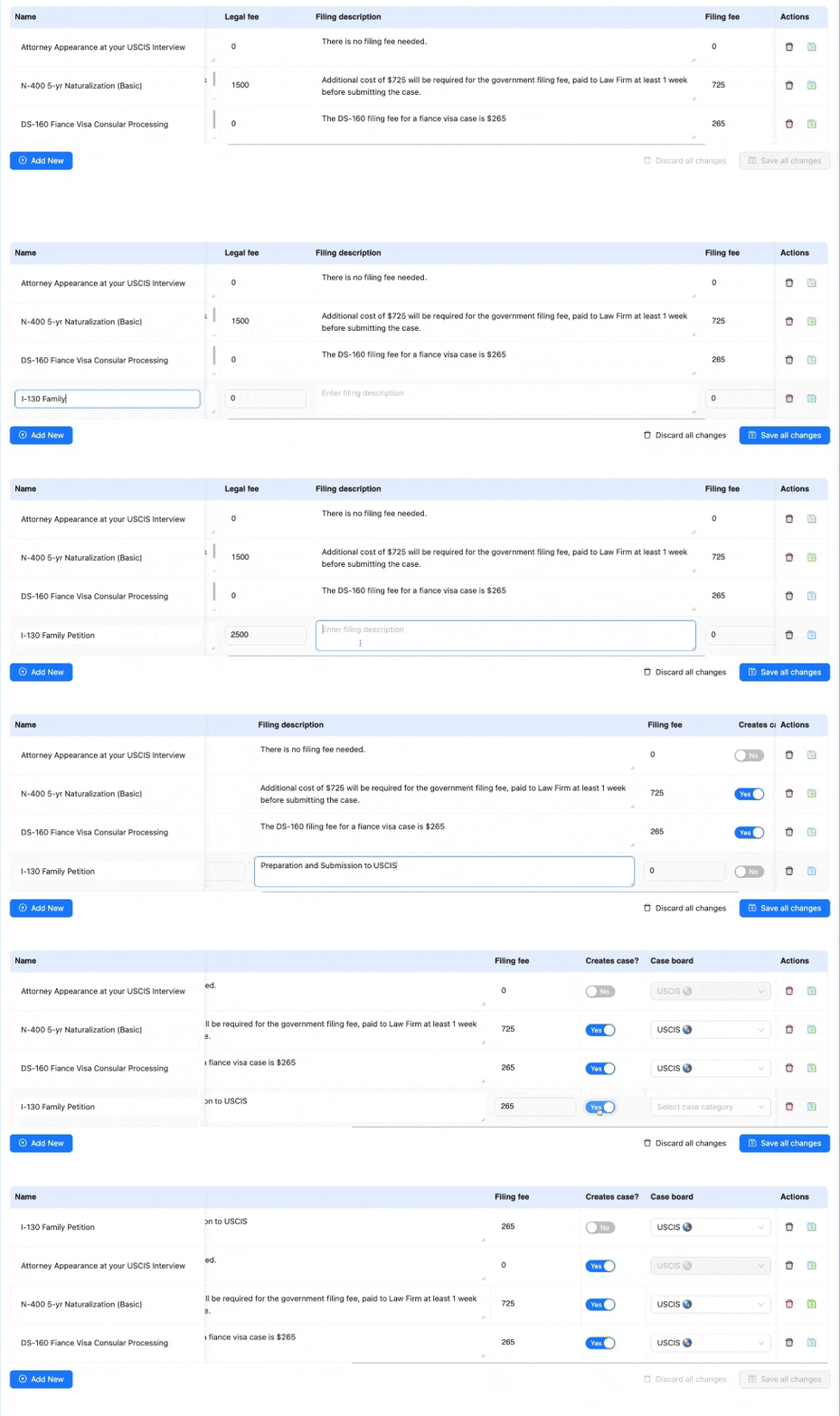
This view acts as a repository for all your services, including associated legal and filing fees. For services that lead to case tracking, you can activate the “Creates case” option and select the appropriate case board for new case creation.
It’s essential to list all your services in this board view first to make them available for inclusion in a deal.
Services Item View:
Access this feature by opening a deal and selecting the “services” tab.
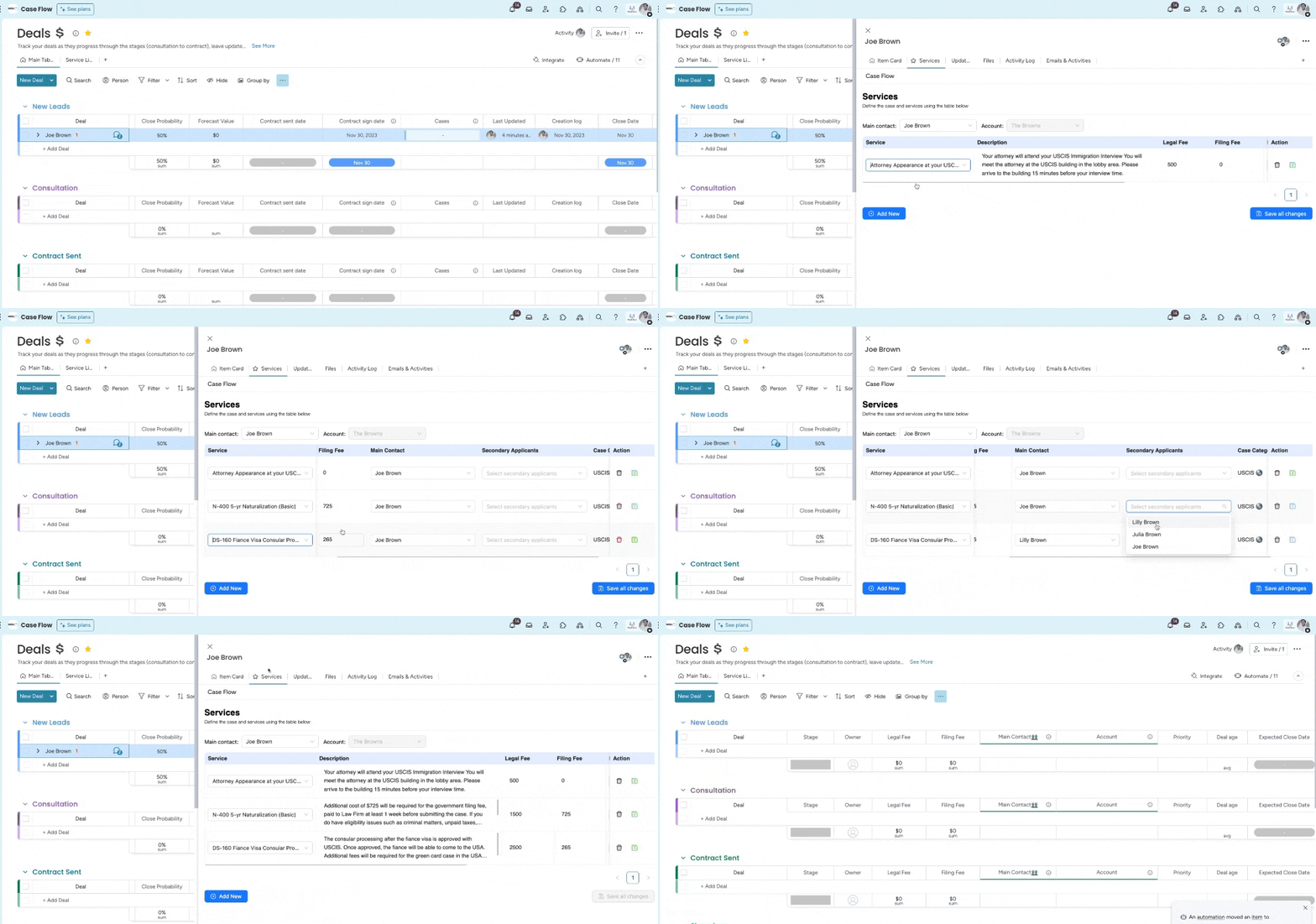
- Here, you’re free to add a diverse range of services to any deal.
- For services that initiate case creation, you must identify the primary applicant and, if any, the secondary applicants.
- Once you save your updates, the total legal and filing fees will reflect immediately in their specific columns on the deals board.
- When a deal’s status is updated to “signed up,” the system automatically creates cases in the designated case boards, following your configurations in the service list board view.
These features are designed to make managing services and cases in your immigration law firm more efficient and integrated.
Case management
Immigration cases are intricate, filled with numerous tasks, dependencies, and phases. Multiple critical deadlines must be met to fulfill client obligations, and any error could significantly impact your client’s life. Therefore, maintaining current updates for both your team and clients on case status is crucial.
Designed specifically for immigration law firms, Case Flow includes five key case boards in our workspace template:
1. USCIS (U.S. Citizenship and Immigration Services)
2. FOIA (Freedom of Information Act) Requests
3. EOIR (Executive Office for Immigration Review)
4. Consular Process
5. Future Cases
These boards go beyond mere lists – they are active management tools. Each is equipped with essential features for case management, including task templates, receipt tracking, and more, to cater to the complex nature of immigration cases.
Customized to reflect the typical case progression within these entities, each board comes with specific groups/stages and a column structure that aligns with the workflow of these processes.
Recognizing that immigration cases vary widely, these boards are adaptable. You have the flexibility to tailor and add more case boards as needed, ensuring they meet the unique demands of your firm’s cases.
Creating Cases
Similar to managing deals and contacts, there are various methods to generate cases, but one stands out above the rest: utilizing the “service views” in the deals board. While the system is flexible enough to allow case creation in other ways, adding relevant services to a deal before changing its status to “signed up” using these views is advantageous. This method doesn’t just track sales data like “Total Legal Fees” and “Total Filing Fees,” but it also enables the creation of multiple cases from a single deal, offering a more integrated and comprehensive approach to case management.
Managing case tasks with Templify
Case Flow integrates the Templify app, designed to let you effortlessly create task templates and automatically generate tasks for your cases, enhancing efficiency and organization.
How to find the Templify app
The Templify app comes preloaded onto all the case boards, as well as the case board template. If you would like to use this app on another board or accidentally deleted it from a board and need to add it again: you can do so by opening up any item, clicking on the + sign, and searching for it in the item view centre.
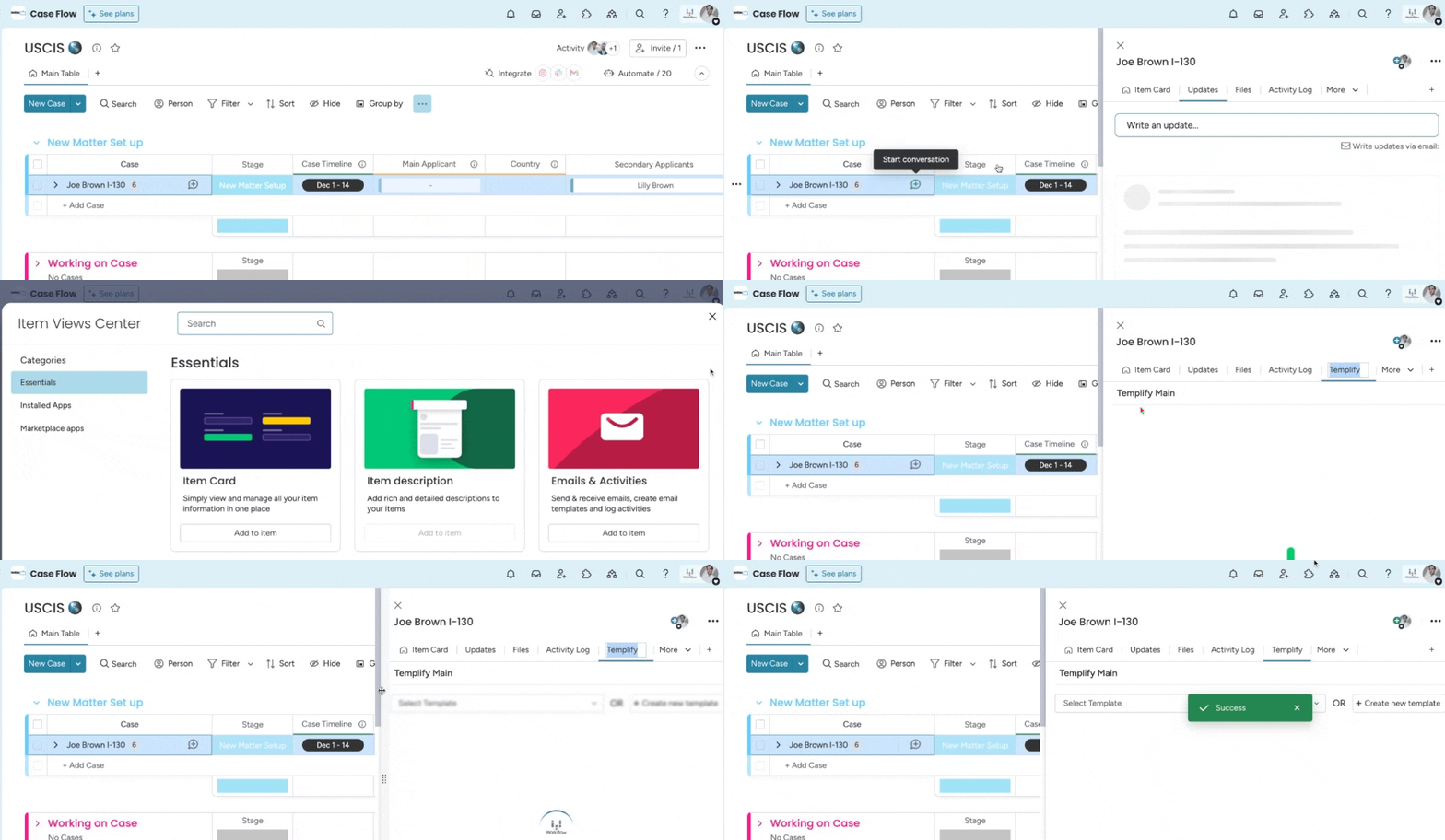
How to create task templates with Templify:
There are 3 ways to create a task template.
- From scratch
- Convert an existing items subitems
- Duplicate an existing template
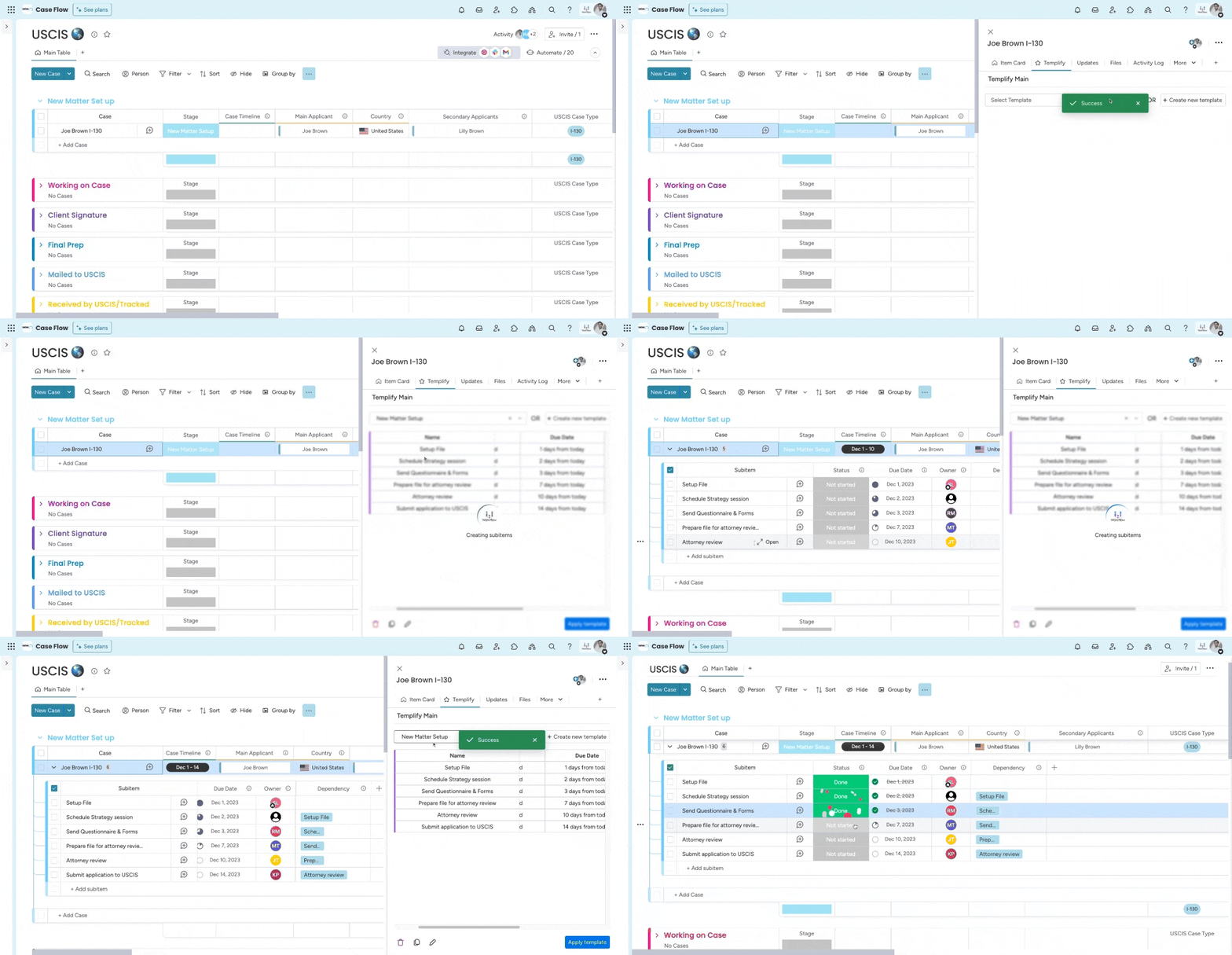
Access Templify by opening up a case in any case board and switching to the Templify view. To create a task template, you can convert an existing item’s tasks into a template or start from scratch.
Moving cases through the pipeline
Lorem ipsum dolor sit amet, consectetur adipiscing elit. Ut elit tellus, luctus nec ullamcorper mattis, pulvinar dapibus leo.